How to Compress a PDF Without Losing Quality (2026 Guide)
How to Compress a PDF Without Losing Quality
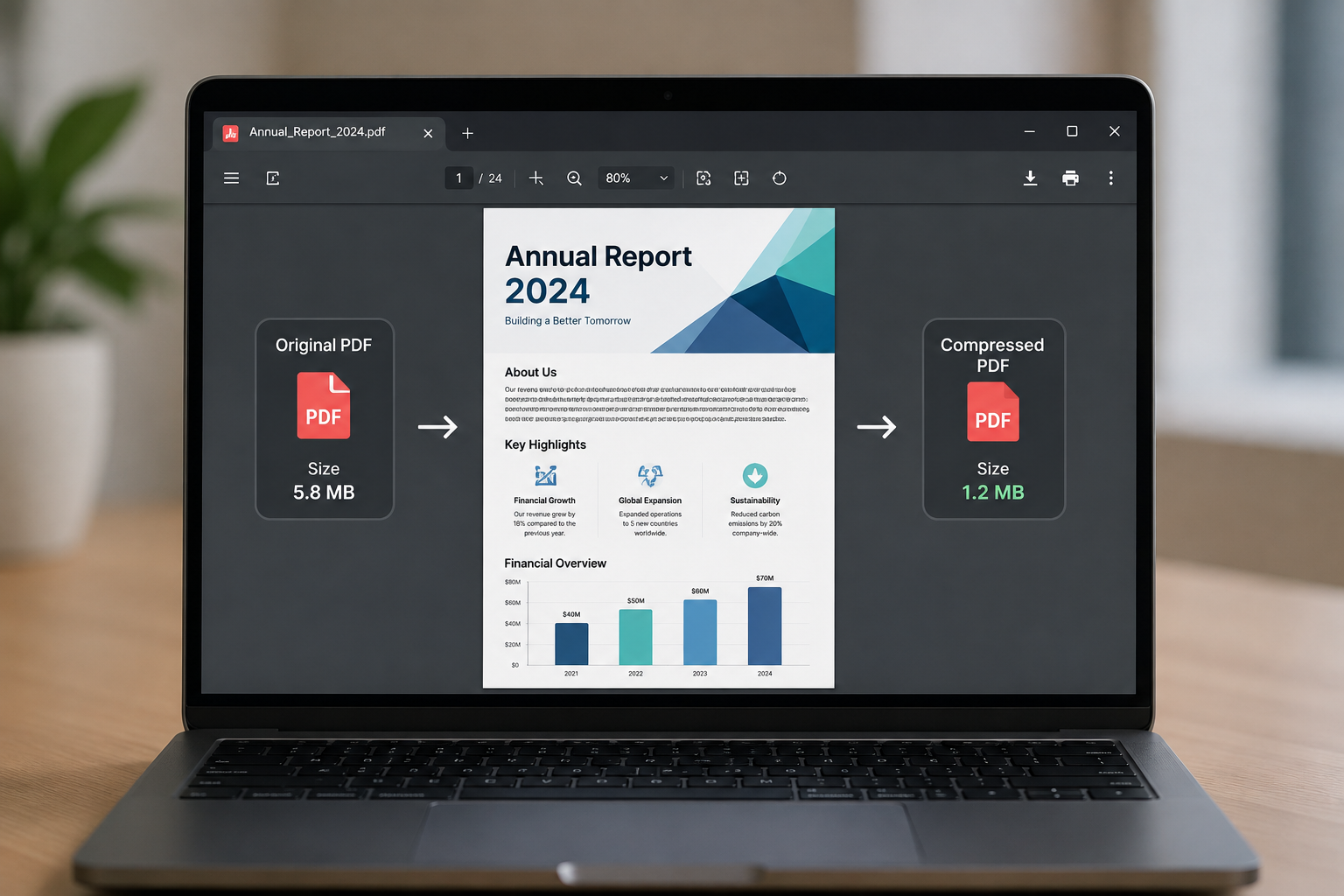
Large PDF files are one of the most common headaches at work — email attachments get rejected, uploads time out, and shared drives fill up fast. The good news: you can shrink almost any PDF by 50-90% without making the text blurry or the images unusable, as long as you compress it the right way.
Key Takeaways
Most PDFs bloat up because of uncompressed images, not text — compressing images correctly solves the size problem in most cases.
"Losing quality" almost always comes from over-compressing images, not from compressing the PDF itself.
A medium compression setting is right for 90% of everyday documents (resumes, reports, contracts, presentations).
You can compress a PDF for free in your browser in under 10 seconds with PDFThings' Compress PDF tool — no installs, no sign-up.
Why Are PDF Files So Large in the First Place?
Before compressing, it helps to know what's actually taking up space. A PDF isn't one big blob of data — it's a container holding several different elements, and they don't all weigh the same:
Images and scanned pages — usually the biggest culprit, especially high-resolution scans or photos pasted straight from a phone
Embedded fonts — full font files bundled into the document so it looks the same on every device
Uncompressed page structure — older PDF versions or exports from certain tools skip compression entirely
Hidden layers or metadata — leftover edit history, comments, or design layers from the original file (common in exports from design software)
n practice, images account for the overwhelming majority of file size in most everyday PDFs. That's why the compression method matters more than "how many pages" the PDF has.
How PDF Compression Actually Works
PDF compression tools generally do three things behind the scenes:
Downsample images — reduce the resolution of embedded images to a level that still looks sharp on screen and in print, without storing unnecessary extra pixels
Re-encode images — switch to a more efficient image format or compression algorithm inside the PDF (similar to how a JPEG is smaller than a raw photo)
Strip redundant data — remove unused fonts, duplicate objects, and metadata that don't affect what you see on the page
None of this touches your actual text, which stays as vector data and remains perfectly sharp at any zoom level — this is the main reason text-heavy PDFs (contracts, resumes, reports) compress extremely well with zero visible quality loss.
Step-by-Step: Compress a PDF Without Losing Quality
Here's the safest way to do it:
1. Choose the right compression level
Most tools, including PDFThings' Compress PDF, offer a few presets:
Low compression — best for print-quality documents, portfolios, or anything with detailed photography
Medium compression — the right default for everyday documents like invoices, resumes, and reports
High compression — best when file size matters more than pixel-perfect images, like email attachments or web uploads
If you're not sure, start with medium. You can always compress again if you need it smaller.
2. Upload your file
Drag your PDF into the tool. Since PDFThings processes files in the browser and deletes them automatically after 12 hours, there's no need to worry about the file sitting on a server indefinitely.
3. Preview before you download
Always check a few pages after compressing — especially ones with images, charts, or scanned signatures. Text-only pages will look identical; image-heavy pages are where quality loss becomes visible if you've picked too aggressive a setting.
4. Download and rename clearly
Keep a copy of the original until you've confirmed the compressed version works for your purpose (e.g., it still meets a submission portal's size limit).
[INTERNAL-LINK: merge PDF files first → guide on how to merge PDF files online]
Common Mistakes That Cause Quality Loss
Compressing an already-compressed PDF repeatedly. Each pass re-encodes the images again, which compounds quality loss. Always compress from the original file, not from a previously compressed copy.
Using "high compression" on photo-heavy documents. Portfolios, brochures, or anything meant for print should stay on low or medium settings.
Compressing a scanned document that's already low-resolution. If the scan itself is blurry, no compression setting will fix that — the quality ceiling was set at scan time.
Ignoring color profiles. Some aggressive compressors convert CMYK to RGB, which can shift colors slightly — worth checking if the PDF is headed to a professional printer.
How Much Smaller Can You Expect Your PDF to Get?
Compression results vary by content type, but as a general rule:
Text-only PDFs (contracts, resumes) often shrink 20-40% with no visible change
Scanned documents can shrink 50-70% since scans are usually stored at unnecessarily high resolution
Image-heavy PDFs (brochures, presentations exported with embedded photos) see the biggest gains — often 60-90% smaller at medium compression
Frequently Asked Questions
Does compressing a PDF reduce text quality?
No. Text in a PDF is stored as vector data, not as pixels, so it stays crisp regardless of compression level. Only embedded images are affected.
What's the best compression level for job applications and resumes?
Medium compression is more than enough. Resumes are almost entirely text, so file size usually drops significantly with zero visible change.
Can I compress a PDF back to its original size?
No — compression is not fully reversible once images are downsampled. Always keep your original file if you might need full quality again later.
Is it safe to compress PDFs online?
Look for tools that state a clear file-deletion policy and don't require account sign-up. PDFThings deletes all files automatically within 12 hours and never shares or stores them longer than necessary.
Compress Your PDF Now
If your PDF is too big for email, a job portal, or a slow upload form, you can fix it in seconds — no installs, no sign-up, and nothing left behind.