How to Split a Large PDF into Separate Files (Free & Online)
How to Split a Large PDF into Separate Files
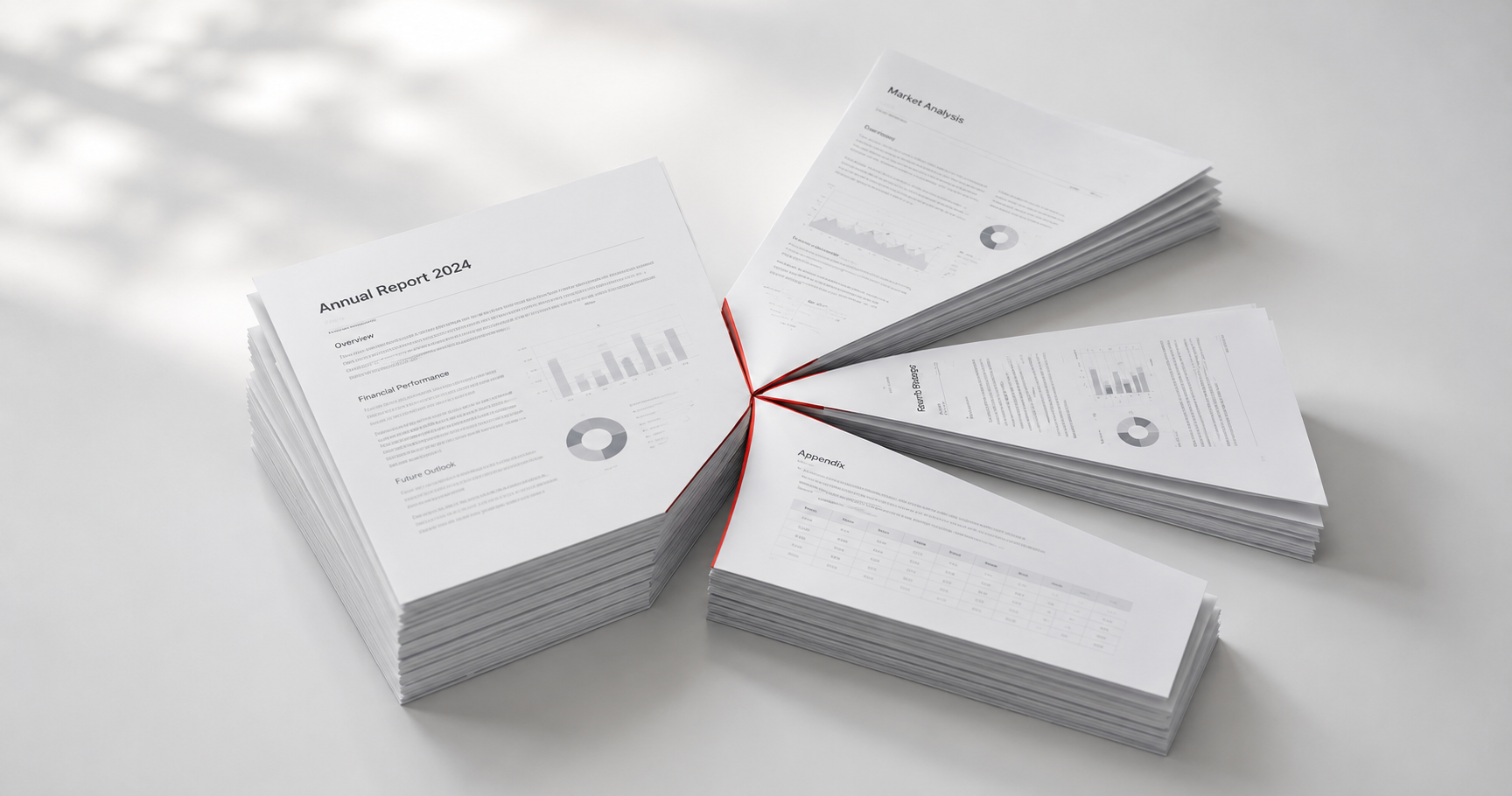
Sometimes a PDF is too much of a good thing — a 200-page report when you only need chapter three, a scanned bundle of contracts that should really be five separate files, or a single document that's too large to email as one piece. Splitting a PDF solves all of this, and it takes about as long as merging one.
Key Takeaways
Splitting a PDF lets you either break it into equal chunks or extract specific page ranges — PDFThings' Split PDF tool supports both for free.
Extracting a page range keeps that content exactly as it was — no quality loss, since nothing is re-encoded.
Splitting is the right fix for "file too large to email," not compression, when you only need part of the document anyway.
Always preview the split output before deleting the original — page ranges are easy to miscount by one.
When You Actually Need to Split a PDF
Splitting isn't just for oversized files. The most common reasons people reach for it:
Extracting a chapter or section from a long report, textbook, or manual
Separating a scanned bundle — like a stack of signed contracts scanned together — back into individual documents
Sharing only part of a document without sending the whole thing
Working around upload or email size limits by sending just the relevant pages
Isolating one form or invoice from a multi-page batch scan
Step-by-Step: Split a PDF Online
1. Decide what kind of split you need
Most split tools offer two modes:
Split by page range — pull out specific pages (e.g., pages 5-12) as one new file
Split into equal parts — break a large document into several smaller files of roughly equal length
Knowing which one you need before you start saves time, since the two modes ask for different inputs.
2. Upload your PDF
Open PDFThings' Split PDF tool and drag in the file. The page count will typically show up automatically, which helps you plan your ranges.
3. Select your pages or split points
For a range split, enter the start and end page numbers. For an equal split, choose how many pages per file, or how many files total. Double-check page numbers against the actual PDF viewer — the printed page number inside a document doesn't always match the PDF's file page count (cover pages and blank pages throw this off constantly).
4. Preview before downloading
Open the resulting file(s) and confirm the content starts and ends where you expected. This step catches off-by-one page errors before you send the wrong file to someone.
5. Rename each output file clearly
If you split into multiple files, name them so they're identifiable at a glance — contract-page-1.pdf beats split_1.pdf when you're looking for a specific file later.
[INTERNAL-LINK: merge PDF files → guide on how to merge PDF files online for free]
Common Splitting Mistakes to Avoid
Miscounting pages. The PDF's internal page count and any printed page numbers inside the document are often different — always count from the file itself.
Splitting instead of compressing. If your goal is just a smaller file size and you need all the content, compress the PDF rather than splitting it.
Not checking for content that spans a split point. A table, image, or paragraph that continues across the page you're splitting on will be cut in half.
Losing track of which piece is which. Rename files immediately after splitting rather than leaving generic names for later.
Split vs. Compress vs. Organize: Which Do You Need?
These three PDF tasks get mixed up often, so here's the quick distinction:
Split — divide one PDF into multiple separate files (by range or equal parts)
Compress — reduce file size while keeping all the same content and page count
Organize — reorder, rotate, or delete pages within a single PDF without creating new files
If your real problem is "this file is too big to email" but you need every page, compress it instead. If you just need pages in a different order, organize it rather than splitting and re-merging.
Frequently Asked Questions
Does splitting a PDF reduce its quality?
No. Splitting just separates existing pages into new files — nothing is re-encoded or compressed, so quality is identical to the original.
Can I split a PDF into individual single-page files?
Yes, most split tools support "one page per file" as an option, which is useful for scanned batches that need to become separate documents.
What if I don't know the exact page numbers I need?
Open the PDF first in any viewer to note the page numbers, since it's much faster to plan a split with numbers in hand than to guess and redo it.
Is it safe to split PDFs with sensitive documents online?
Use a tool with a clear deletion policy. PDFThings automatically deletes all uploaded and split files within 12 hours and doesn't require an account.
Split Your PDF Now
Pull out the exact pages you need, or break a large file into smaller ones — free, private, and done in seconds.