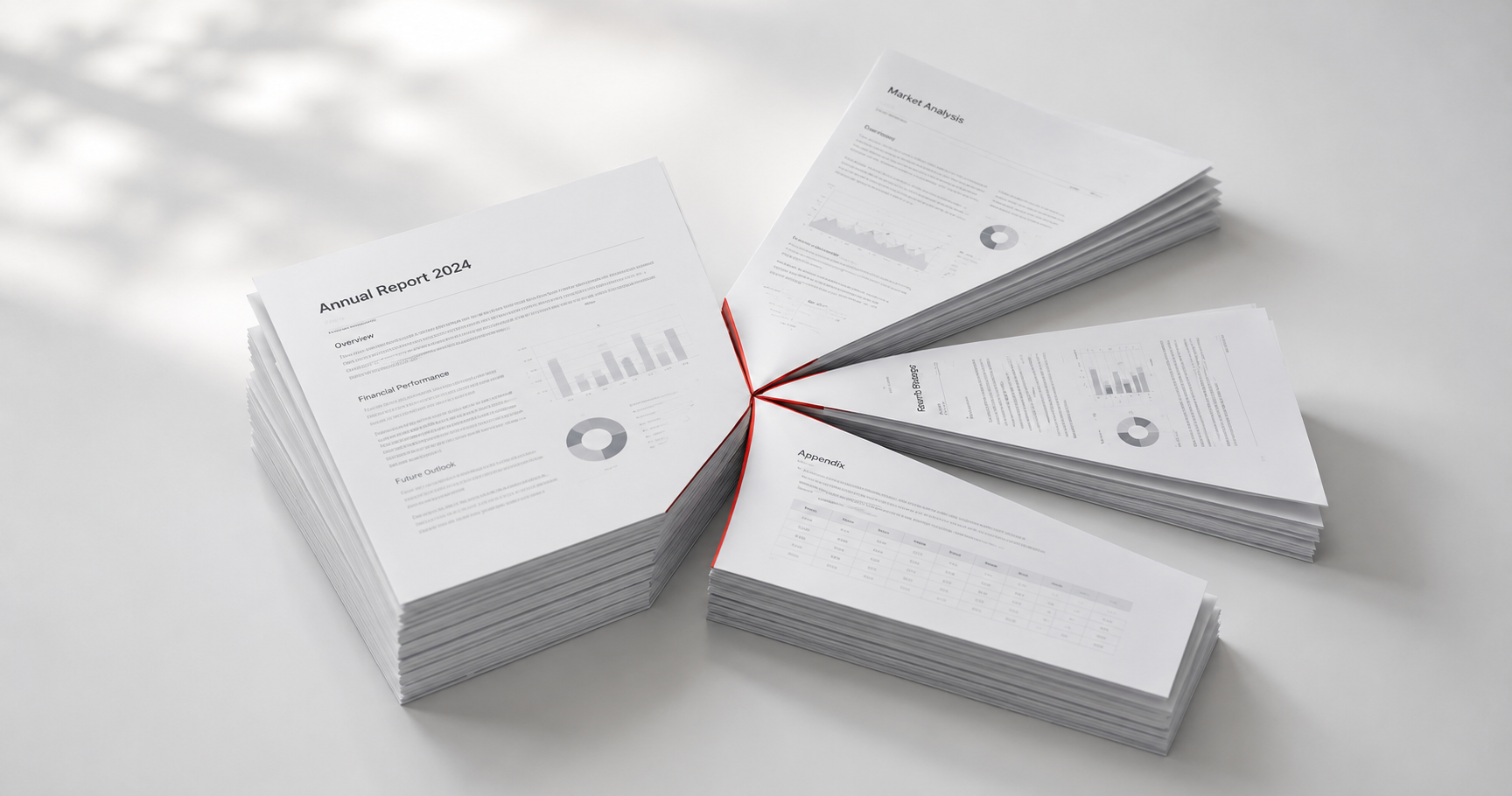
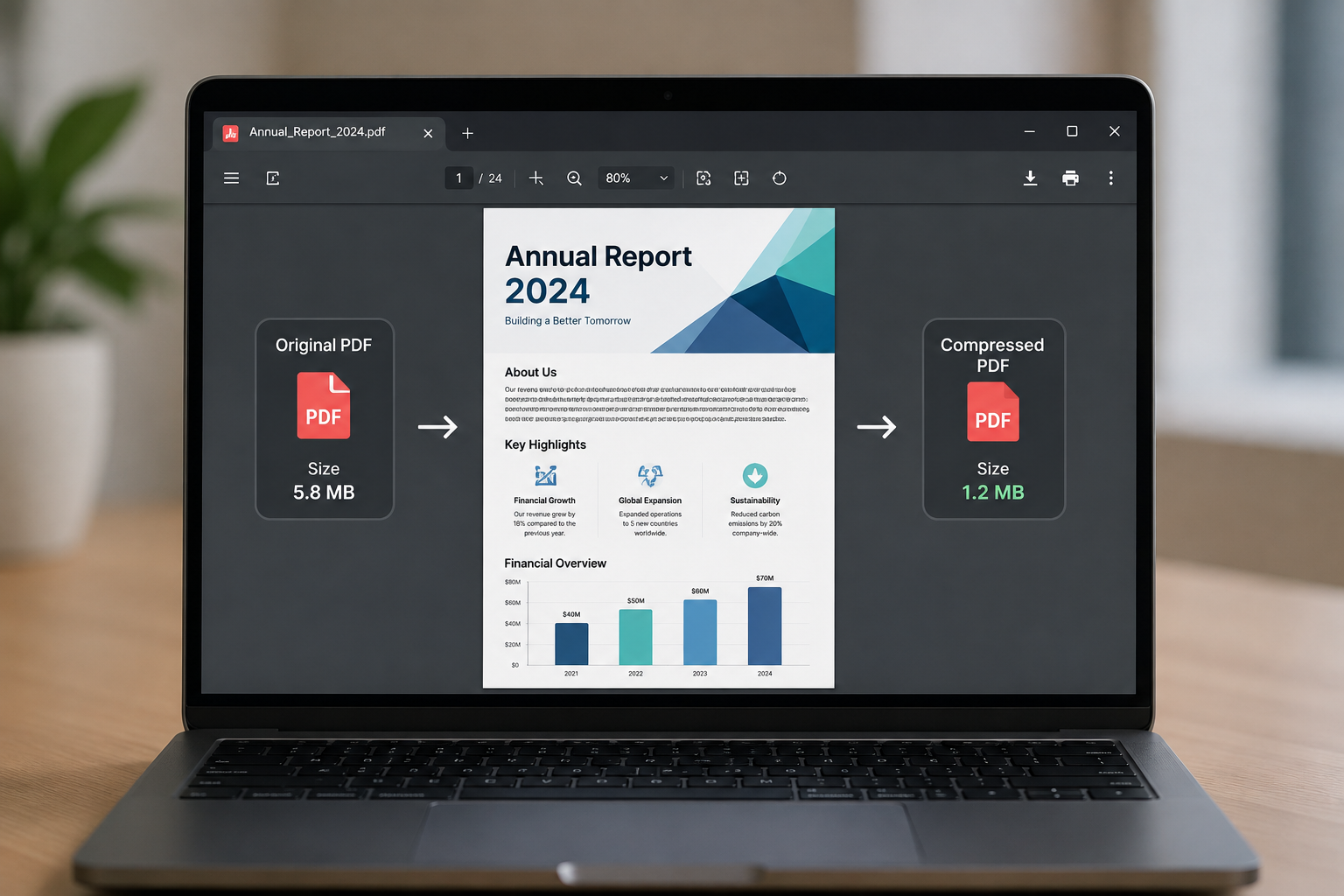
How to Merge PDF Files Online for Free (No Sign-Up)
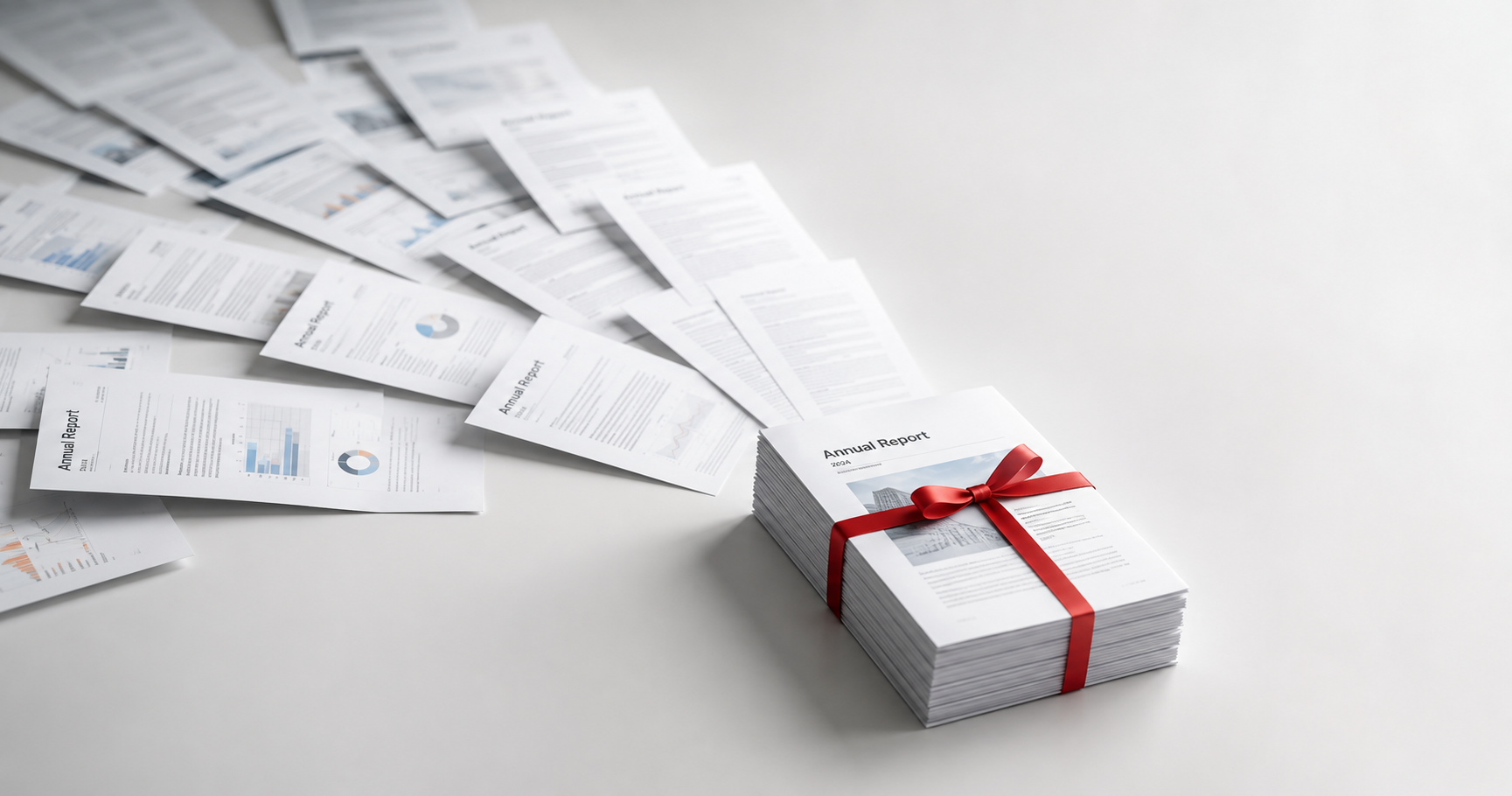
How to Merge PDF Files Online for Free
Whether you're combining invoices for a client, putting together a portfolio, or assembling a job application with a resume, cover letter, and references, merging PDFs is one of the most common document tasks — and one of the easiest to get wrong if you don't control the page order. Here's how to do it cleanly, for free, in under a minute.
Key Takeaways
You can merge unlimited PDFs into one file for free with PDFThings' Merge PDF tool — no account, no watermark.
Page order matters more than most people expect — always arrange files before merging, not after.
Merging doesn't compress or resize your files; if the final file is too large, compress it separately afterward.
Rename your merged file clearly (e.g.,
Lastname_Application_2026.pdf) so it's easy to identify later.
Why Merge PDFs Instead of Sending Multiple Files?
Sending five separate attachments creates friction for whoever receives them — they have to open, download, and organize each one individually. A single merged PDF:
Looks more professional for job applications, proposals, and client documents
Guarantees the recipient sees everything in the order you intended
Reduces the chance a reviewer misses one of the attached files
Makes printing and archiving simpler, since it's one file instead of several
Step-by-Step: Merge PDF Files Online
1. Gather your files in the right folder
Before uploading, rename your files with numbers if order matters (e.g., 1-cover-letter.pdf, 2-resume.pdf, 3-references.pdf). Most merge tools let you reorder afterward too, but starting organized saves a step.
2. Upload all files at once
Open PDFThings' Merge PDF tool and drag in every file you want combined. You can add more files or remove one before merging if you change your mind.
3. Drag to reorder
Arrange the files in the exact sequence you want them to appear in the final document. This is the step people skip most often — always double-check order before merging, since fixing it after usually means starting over.
4. Merge and preview
Click merge, then open the resulting file and scroll through it once. Confirm every page landed where you expected, especially if any of the source files had multiple pages themselves.
5. Download and rename
Give the merged file a clear, descriptive name rather than leaving it as merged.pdf — this matters if you're sending it to a recruiter, client, or printer.
[INTERNAL-LINK: split PDF pages → guide on how to split a large PDF into separate files]
Common Merge Mistakes to Avoid
Merging before checking each file individually. If one source PDF is rotated sideways or has a blank page, that error carries into the merged file. Check each file first.
Forgetting file size adds up. Merging five 2MB PDFs creates a 10MB file. If you're emailing it, compress the merged PDF afterward rather than compressing each file first.
Not verifying page order in the final file. A quick scroll-through before sending takes 10 seconds and avoids an embarrassing resend.
Uploading password-protected files. Most merge tools can't combine a locked PDF — unlock it first if needed.
When Merging Isn't the Right Tool
Merging combines files as-is; it doesn't edit content, remove pages, or reduce file size. If you actually need to:
Remove or reorder pages within one existing PDF → use an organize/rotate tool instead
Shrink the final file size → compress after merging, not before
Extract just a few pages from a longer document → split the PDF rather than merging
Frequently Asked Questions
Is there a limit to how many PDFs I can merge?
Free tools like PDFThings typically support merging as many files as you need in one session, though very large batches may take slightly longer to process.
Will merging PDFs reduce the quality of my files?
No. Merging simply combines the files as they are — it doesn't recompress images or text. If you need a smaller file, compress it as a separate step after merging.
Can I merge PDFs on my phone?
Yes — browser-based tools like PDFThings work on mobile without needing to install an app, since everything runs in the browser tab.
Is it safe to merge PDFs with sensitive information online?
Choose a tool with a clear deletion policy. PDFThings automatically deletes all uploaded and merged files within 12 hours and doesn't require an account.
Merge Your PDFs Now
Combine as many files as you need into one clean document — free, private, and ready in seconds.